Void Calendar
Your schedule, tasks, notes and focus. One calendar.
Every plan on one week view. Tell AI what needs doing, and it finds time that is actually free, around the events you already have.
Free public beta · Apple Silicon and Intel · macOS 13 or later
The basics
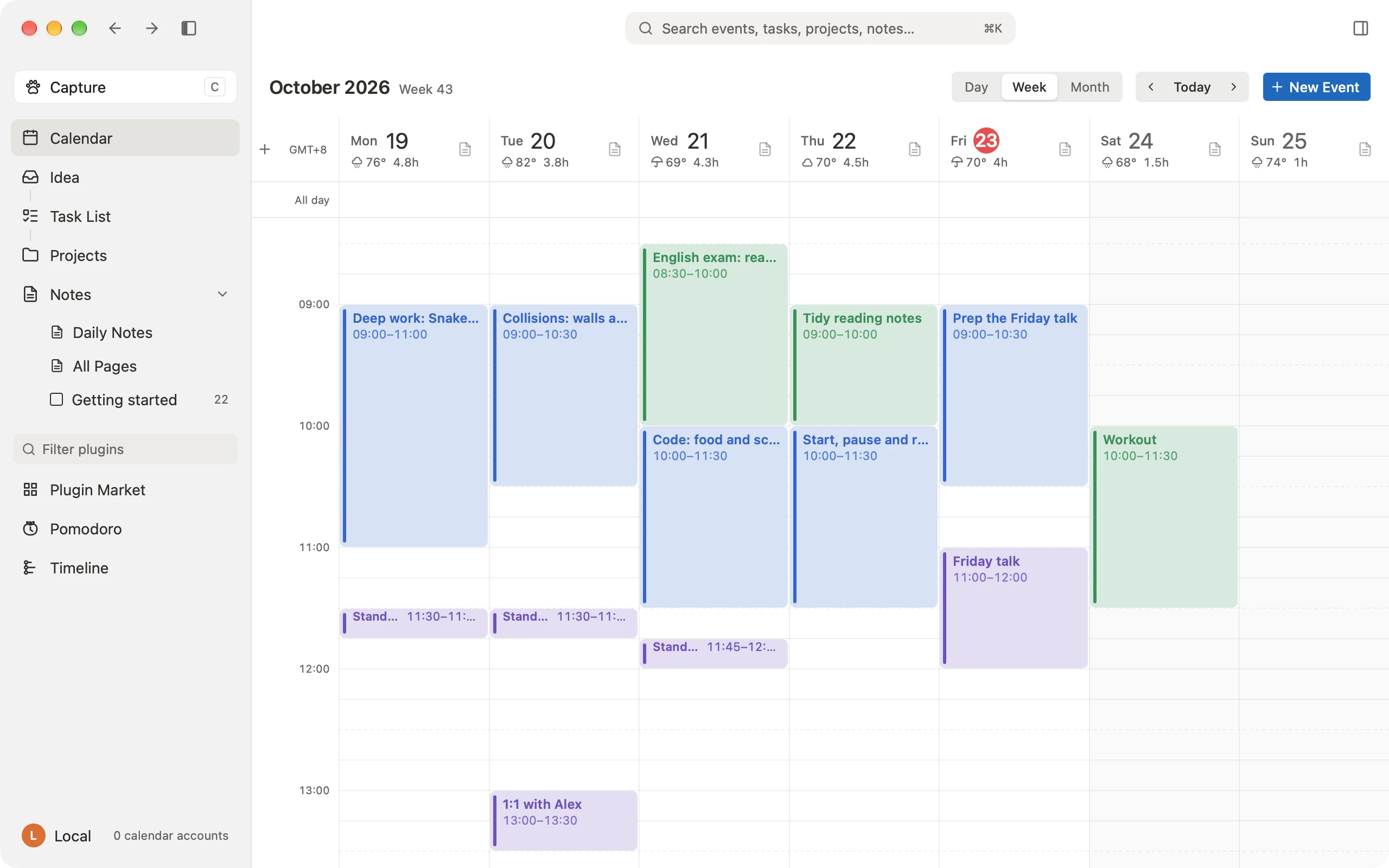
Six places for your whole week.
The sidebar is the whole map, and every place has a single-key shortcut.
- ⌘1
Calendar
Day, week and month views. Drag to reschedule; each day shows the weather and hours planned.
- I
Idea
An inbox for ideas you have not committed to yet. Sort them into tasks later.
- T
Task List
Priorities, subtasks and due dates, in a list or on a board.
- P
Projects
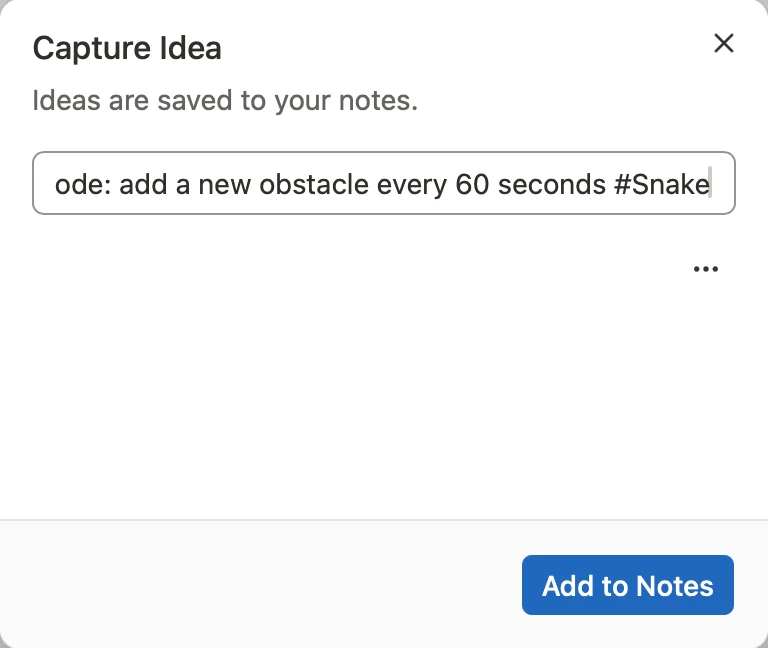
Progress, hours scheduled this week and unscheduled work, per project.
- D
Notes
Daily notes and pages. Link tasks and pages with double brackets.
- O
Pomodoro
Pick something from today and start a focus round. Time counts toward the project.
AI scheduling
One sentence, and the project is on your calendar.
AI reads your events, tasks and projects, then proposes a plan: each block with its time, length and whether it conflicts. Check or adjust each one; nothing lands on the calendar until you confirm, and changes can be undone.
- On a project, choose Schedule with AI to fit the remaining tasks into free time this week and next, by estimate.
- Bring your own model service, a CLI tool on your Mac such as Claude Code or Codex, or an enabled hosted service.
- Pick a scheduling style, or write your own rules, like deep work in the mornings only.
Capture
Write it down. Just press C.
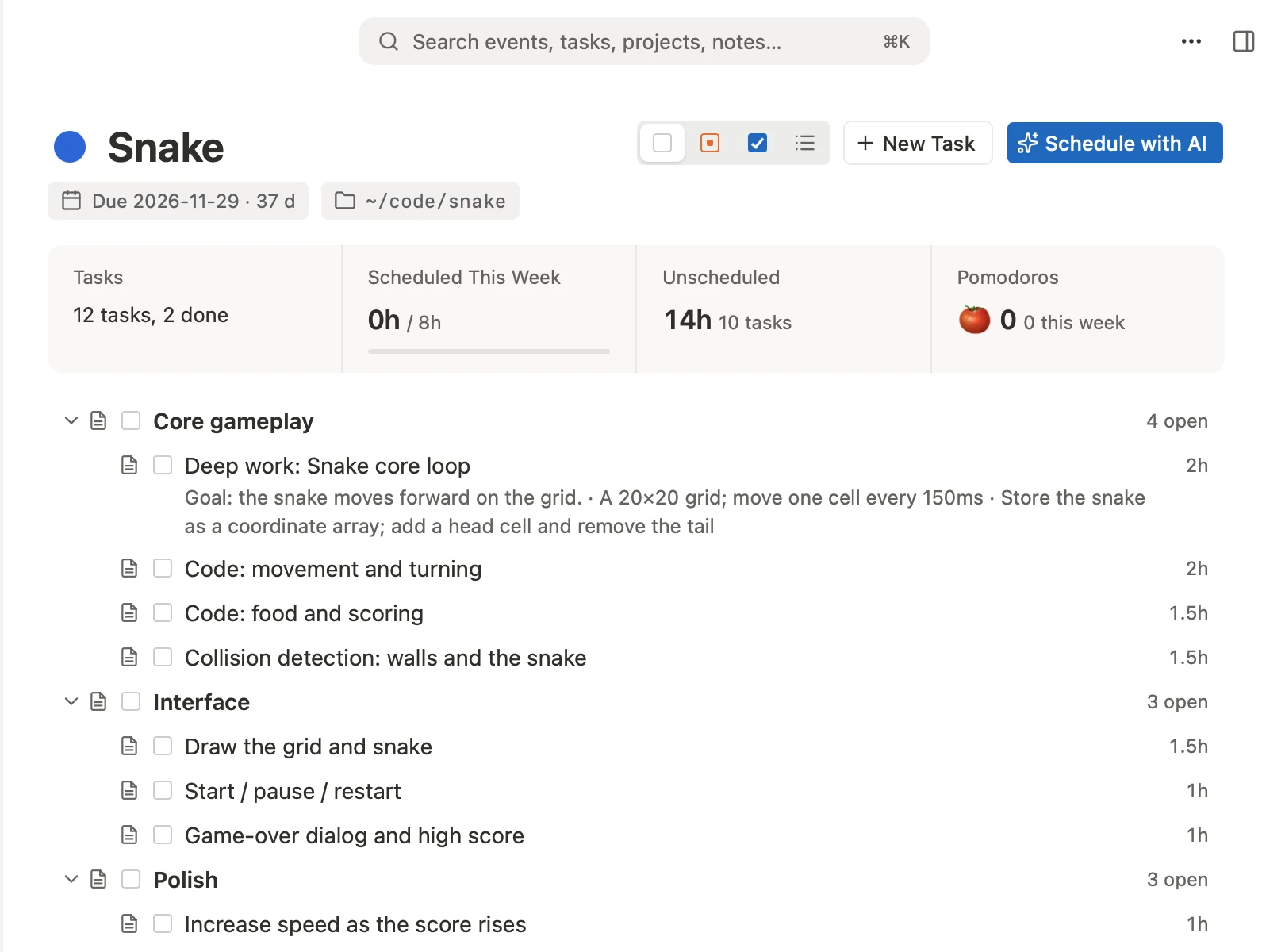
Press C in any view, pick an idea, a to-do or an event, and save with ⌘↵. Unsure ideas wait in Idea; once you decide, move them to your task list.
- Type #project and the idea shows up in that project.
- Inside capture, single keys switch the type: I idea, T to-do, C event.
Tasks and time boxes
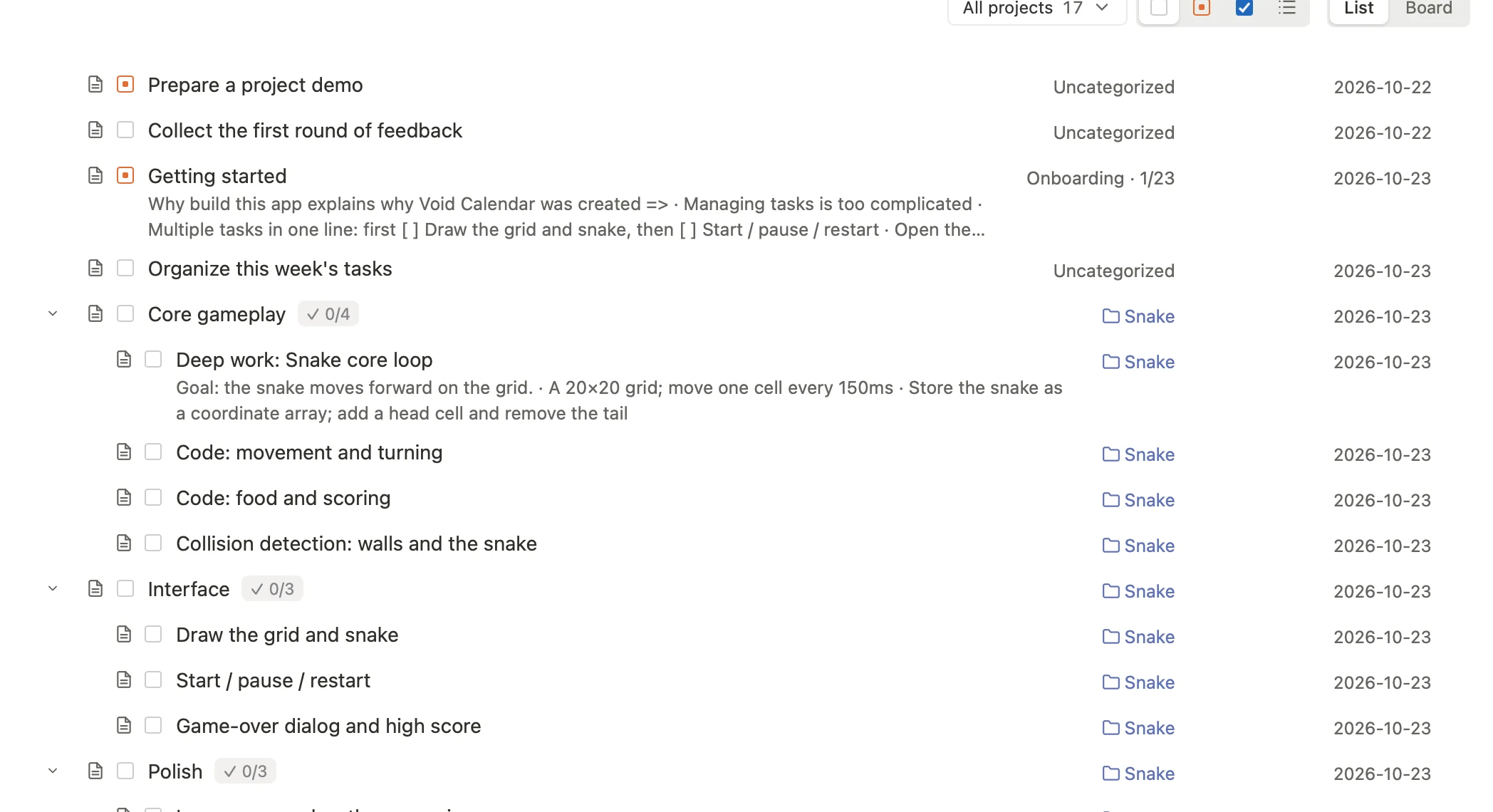
Tasks, subtasks and time boxes, in one list.
Group and nest tasks, with priorities and due dates. A task can link to several time boxes: delete a box and the task stays; finish the task and the time you spent stays too.
- List and board views, filtered by project or status.
- Sync lists from Apple Reminders and Google Tasks.
Notes
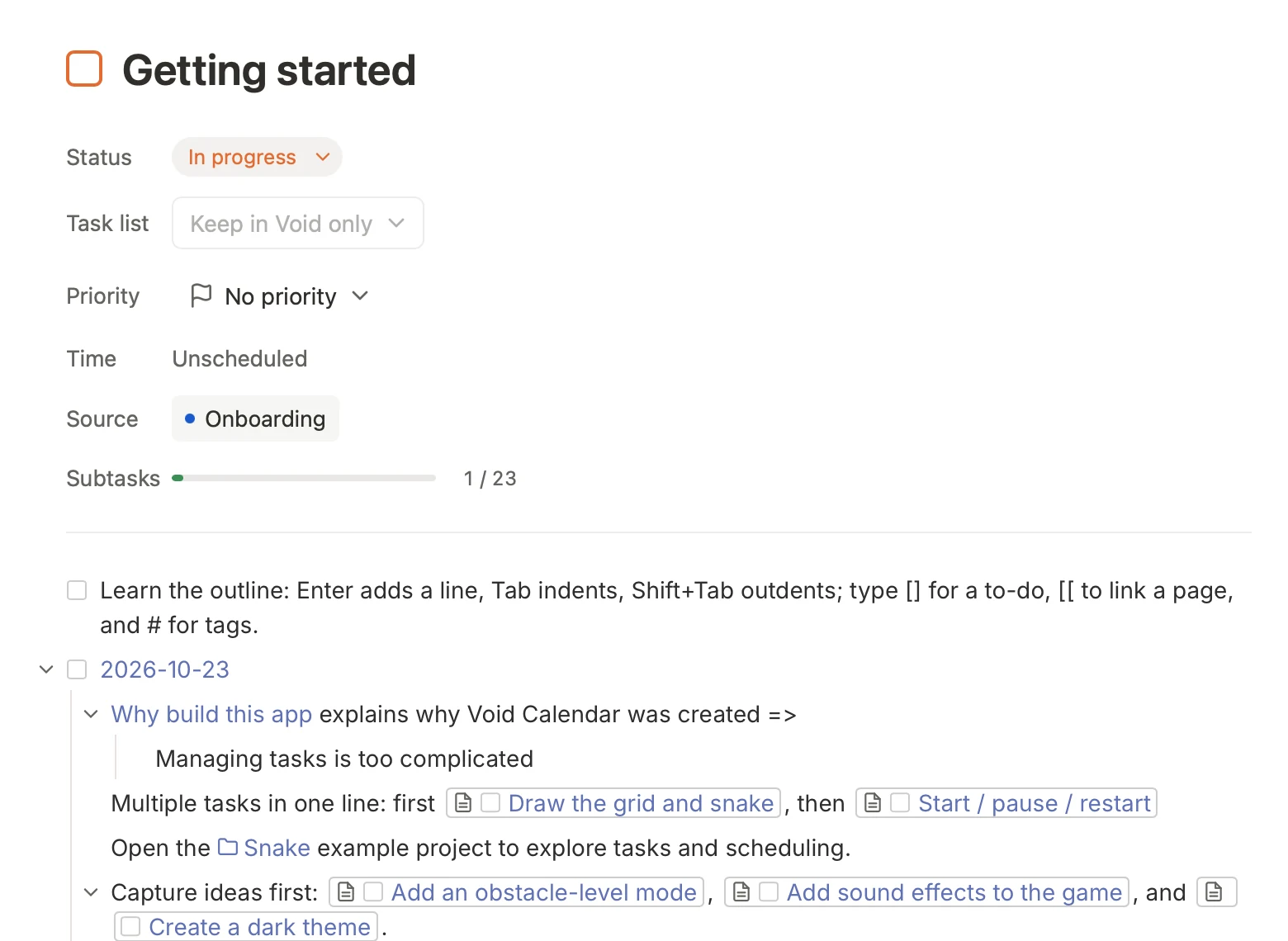
Notes and tasks, linked both ways.
An outliner at heart: Return adds a line, Tab indents. Type [] for a to-do and double brackets to link a page or task; backlinks appear wherever it is mentioned.
- A daily note for every day, with that day’s events and to-dos alongside.
- Import your existing notes from Apple Notes.
Focus
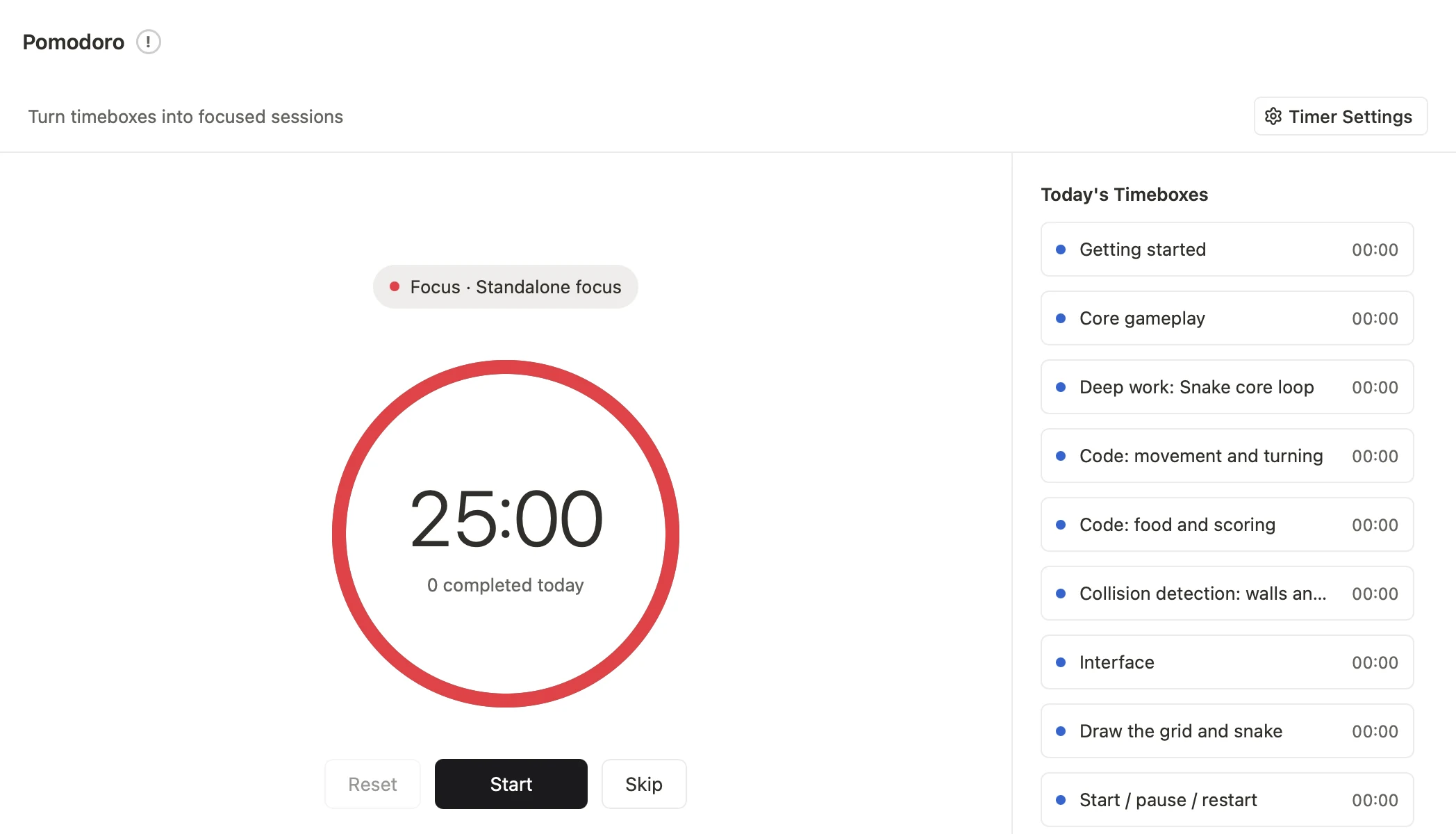
A Pomodoro timer, tied to today.
Pick something from today’s schedule and start a focus round: 25 minutes by default, with short and long breaks you can change. Focus time counts toward the project.
- See the time left in the menu bar and in Island.
- The Plugin Market adds a timeline, usage tracking and more.
Connect
Bring the calendars you already use.
Events sync both ways, and meeting links join in one click. Available connections depend on your account setup and system permissions.
 Apple Calendar
- iCloud Calendar
- Google Calendar
- Outlook
- CalDAV
 Apple Reminders
 Apple Notes import
- Google Meet
- Zoom
 FaceTime


Shortcuts
Keep your hands on the keyboard.
Common actions have shortcuts. Open Help in the app for the full list.
Open
- Calendar
- ⌘1
- Idea
- I
- Task List
- T
- Projects
- P
- Daily Notes
- D
- All Pages
- A
Capture and search
- Capture
- C
- Save capture
- ⌘↵
- Search
- ⌘K
- Find in page
- ⌘F
- Go to today
- ⌘T
- Settings
- ⌘,
Void Calendar for Island
Follow your heart. Your AI sessions live in the notch.
Island comes with Void Calendar. Connect Claude Code, Codex and other AI coding agents, and the notch shows which session needs approval and which is still working. Answer approvals and questions right there.
Meet Island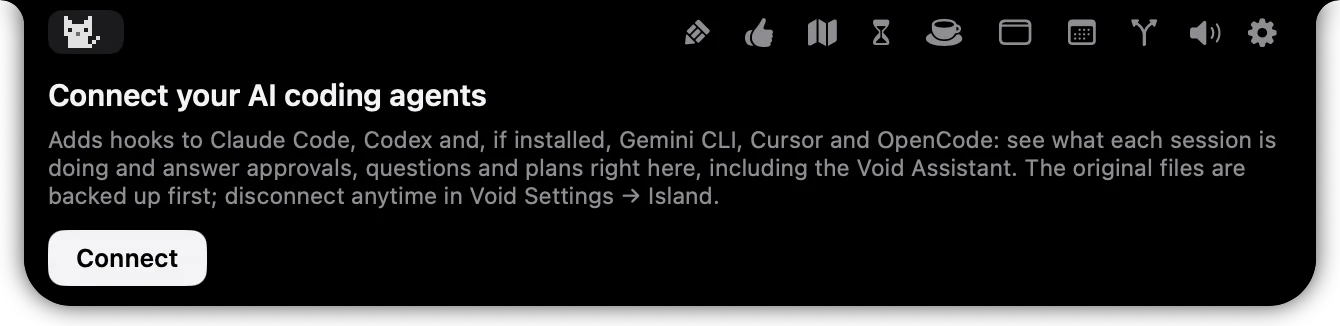
Start for free.
The public beta is free, and your local workspace needs no subscription. Choose Pro later if you want sync across devices.
Download Beta