
Void Calendar for Island
Follow your heart.
Let AI do the coding while you do what you love. Island is built into Void Calendar: see every AI coding session in your notch and answer right there, keep your Mac awake while AI runs, commit finished work from the Git tab, and find the menu bar icons hidden behind the notch.
Included free with Void Calendar · Turn it off in Settings → Island
Opening it
Hover, click, or one shortcut.
Hover the notch
Rest the pointer on the notch for about 0.2 seconds and it opens; move away and it folds back.
Click to open
Click the notch to open it. Right-click for settings or to quit Void.
- ⌥Space
Shortcut
Press the shortcut in any app and Island opens and stays open until you press Esc or click outside.
On an external display without a notch, Island sits at the top centre of the screen.
AI sessions
Every AI coding session, at a glance.
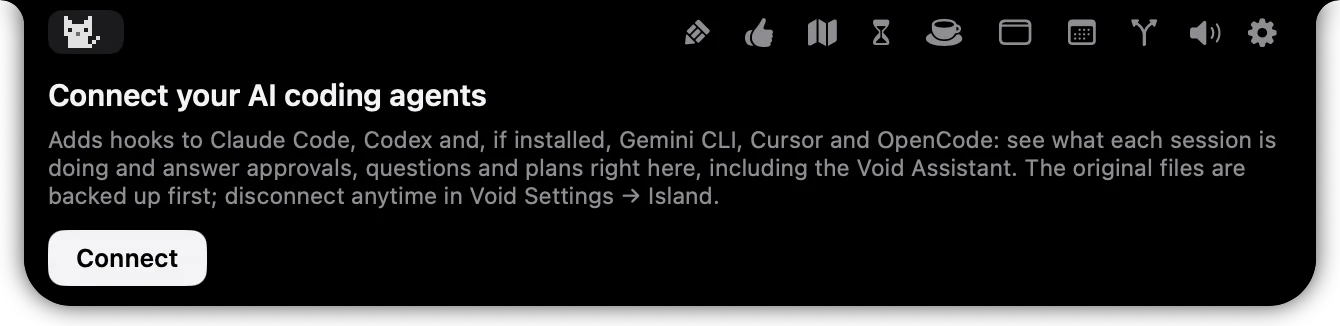
Connect Claude Code, Codex and, if installed, Gemini CLI, Cursor and OpenCode, and Island shows what each session is doing: waiting for approval, working or waiting for input. Answer approvals and questions right there.
- Usage in one place, and a heads-up when a session finishes.
- Your original files are backed up first; disconnect any time in Settings → Island.
Keep awake
Your Mac stays awake when it should.
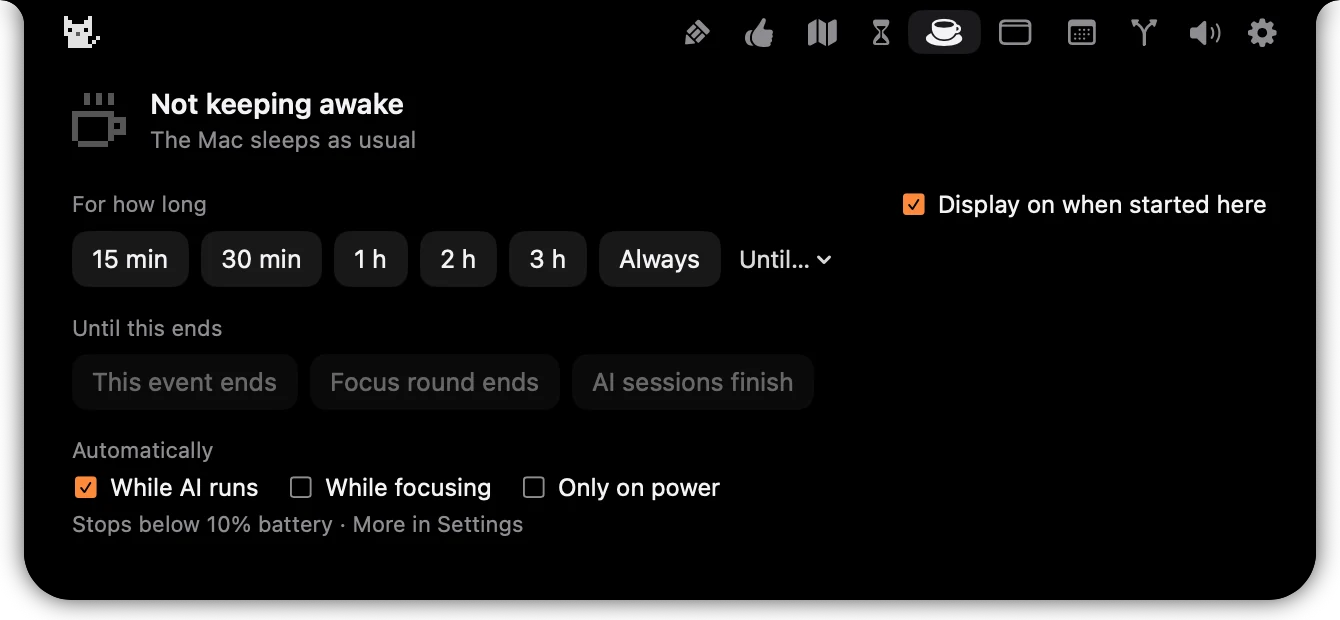
Keep it awake for a set time, or until an event, this focus round or every AI session ends. Or let it stay awake automatically while AI runs, while you focus, or on power.
- Stops below 10% battery.
- Optionally keep the display on when you start it by hand.
Git
When AI is done, commit from the notch.
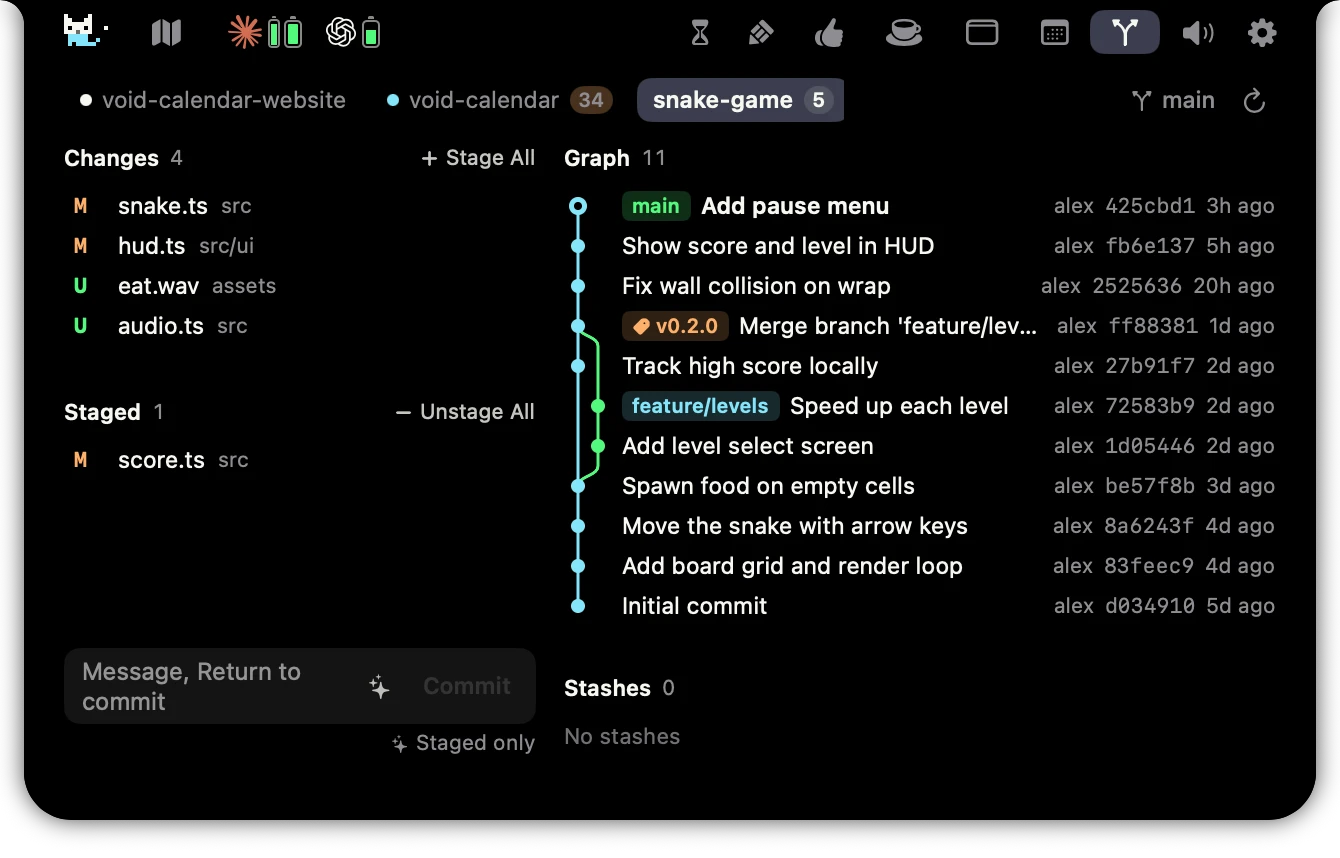
The Git tab lists the repositories your AI sessions work in, and shows which sessions have finished and how many files are left to commit. Click a file to stage it, write a message and commit, or let AI write the message from your changes.
- A branch graph and your stashes sit alongside, with the current branch and how far it is ahead or behind.
- Only safe operations: it never discards changes, pushes or pulls. Requires the Xcode command line tools.
Task map
Your day on one map.
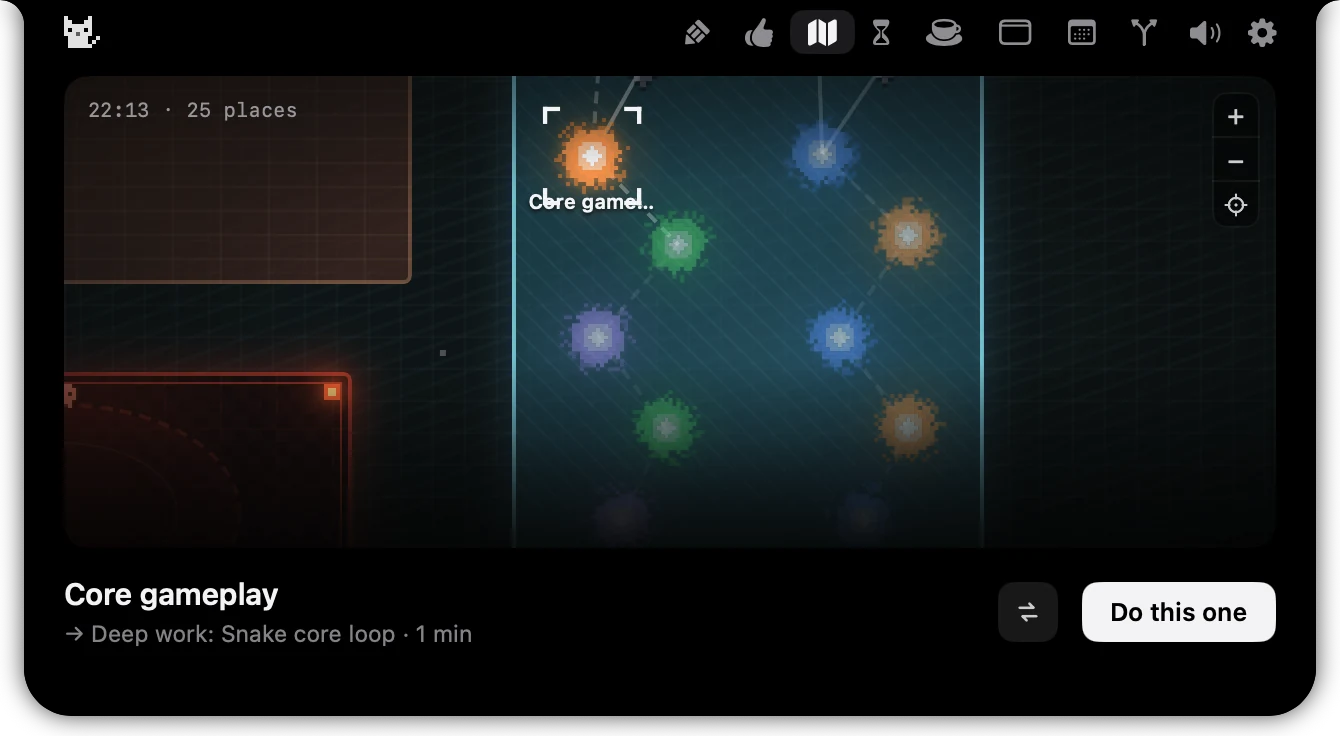
Today’s, planned and overdue tasks become a pixel map you can zoom and pan. Pick one and choose Do this one to start.
- The next step and estimate for the current task sit underneath.
- One button brings you back to what you are working on.
Focus timer
A timer in view, not on your desktop.
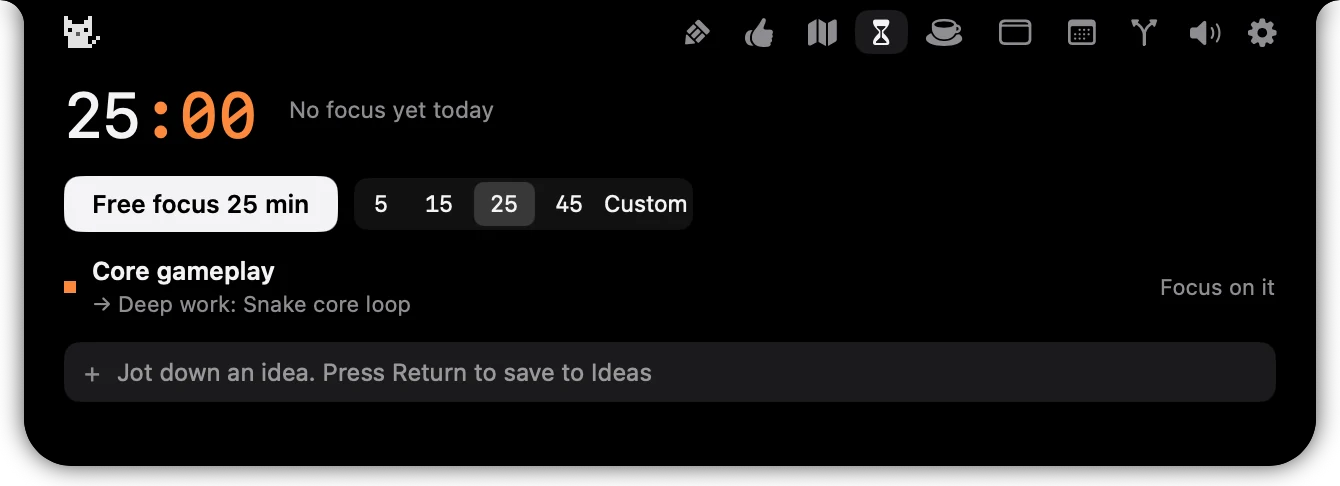
Start a focus round of 5, 15, 25 or 45 minutes, or a custom length. If you get stuck, say so; ending early still records the round.
- The current task and its next step stay in view.
- Jot down an idea and press Return to save it to Ideas.
More
Make it yours.
Journal
Write whatever comes to mind and use [[ ]] to reference a task. Entries are kept by day, next to your daily notes.
Pixel cat
The pixel cat reacts to your AI sessions, and you can chat with it when you need a break.
Size and timing
Fine-tune the width, hover delay and volume.
Look and layout
A light or dark body; show or hide each tab, and adjust the layout.
Sounds
A short pixel jingle plays when it opens. Turn it down or off.
Island comes with Void Calendar.
Download the public beta, open the app, and move your pointer to the notch.
Download Beta